Follow along with the example
Download the input spreadsheet and the output generated from it. The names and reporting lines are illustrative, not a real organization.
You will need a desktop browser. To edit the exported file, use a presentation application that supports .pptx files.
1. Prepare the employee list
Use one row per employee and a header row at the top. A reliable starting format has five columns: Employee ID, Name, Title, Department, and Manager ID.
| Employee ID | Name | Title | Department | Manager ID |
|---|---|---|---|---|
| 001 | Ada Lovelace | CEO | Executive | (blank) |
| 002 | Grace Hopper | VP Engineering | Engineering | 001 |
| 003 | Katherine Johnson | Engineer | Engineering | 002 |
- Give every employee a unique ID. A manager's ID must also appear as an employee in the list.
- Leave Manager ID empty for the top leader. Do not enter their own ID.
- Store IDs such as
001as text in Excel. If Excel has already changed001to1, the tool cannot recover the missing zeros. - Title and Department are optional. Department alone does not determine reporting lines.
A name-and-manager-name table also works when names are unique and match exactly. IDs are safer when two employees share a name. Convert formulas in relationship fields to static values before importing.
2. Import and confirm columns
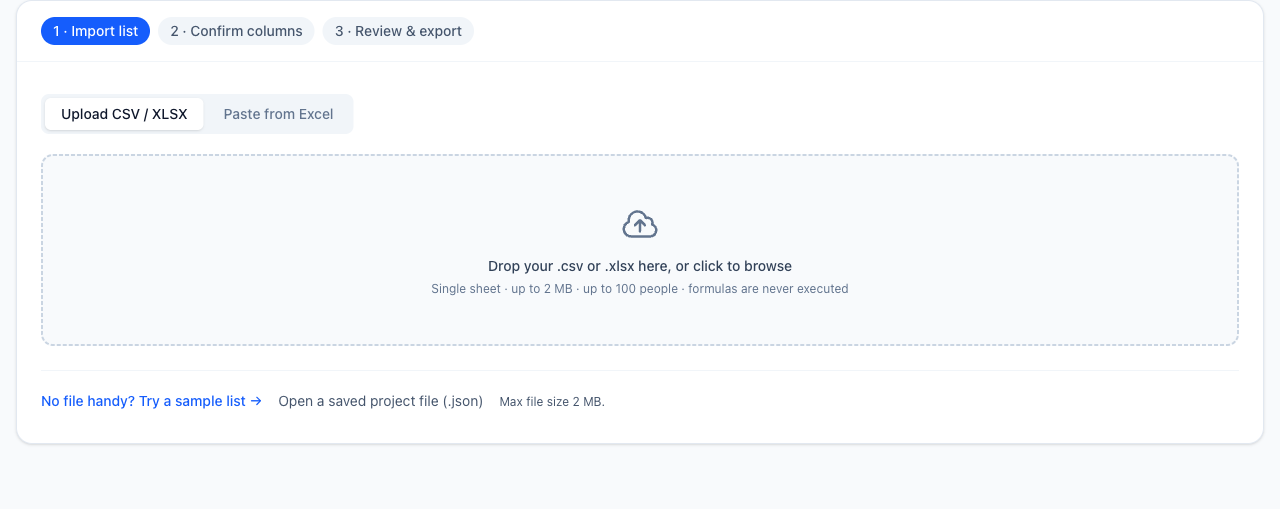
Open the org chart generator, then drop in the Excel example. You can also upload a CSV or choose Paste from Excel and paste a copied range including its headers. For a workbook with several sheets, select the employee sheet.
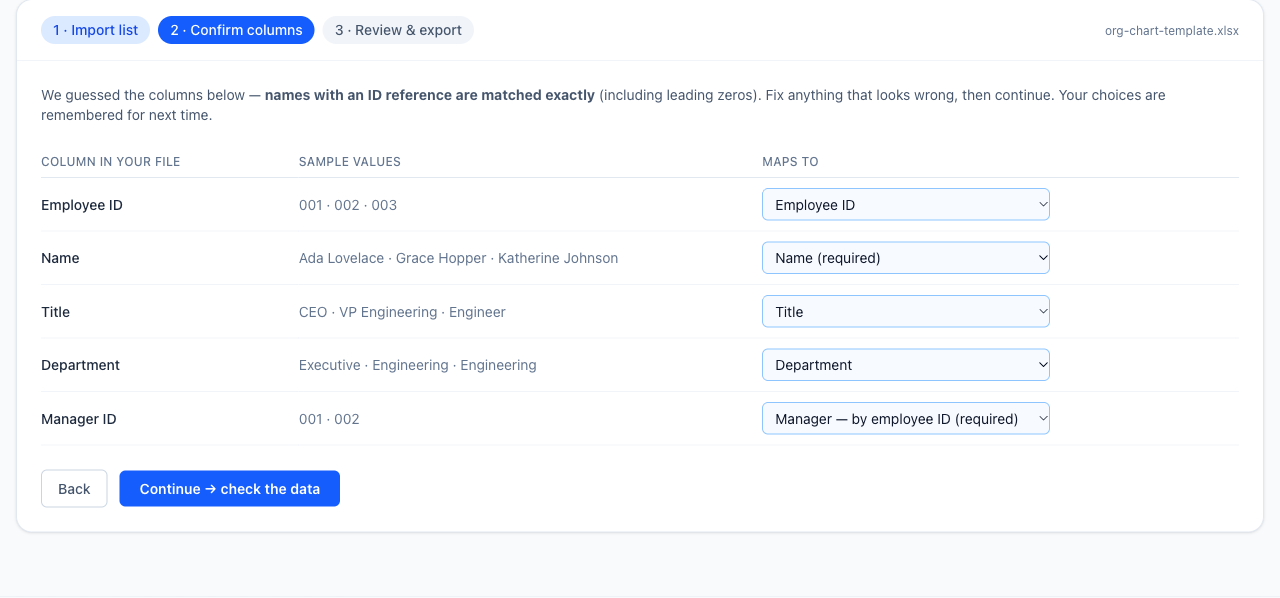
In Confirm columns, check the sample values beside every field. Map Employee ID to Employee ID, Name to Name, and Manager ID to Manager — by employee ID. Do not map an ID column to manager names.
3. Fix reporting errors
The unmodified example should show no data issues. To see how correction works, change Katherine Johnson's Manager ID from 002 to 999 in the editable table. Because no employee has ID 999, a missing-manager issue appears and export is blocked.
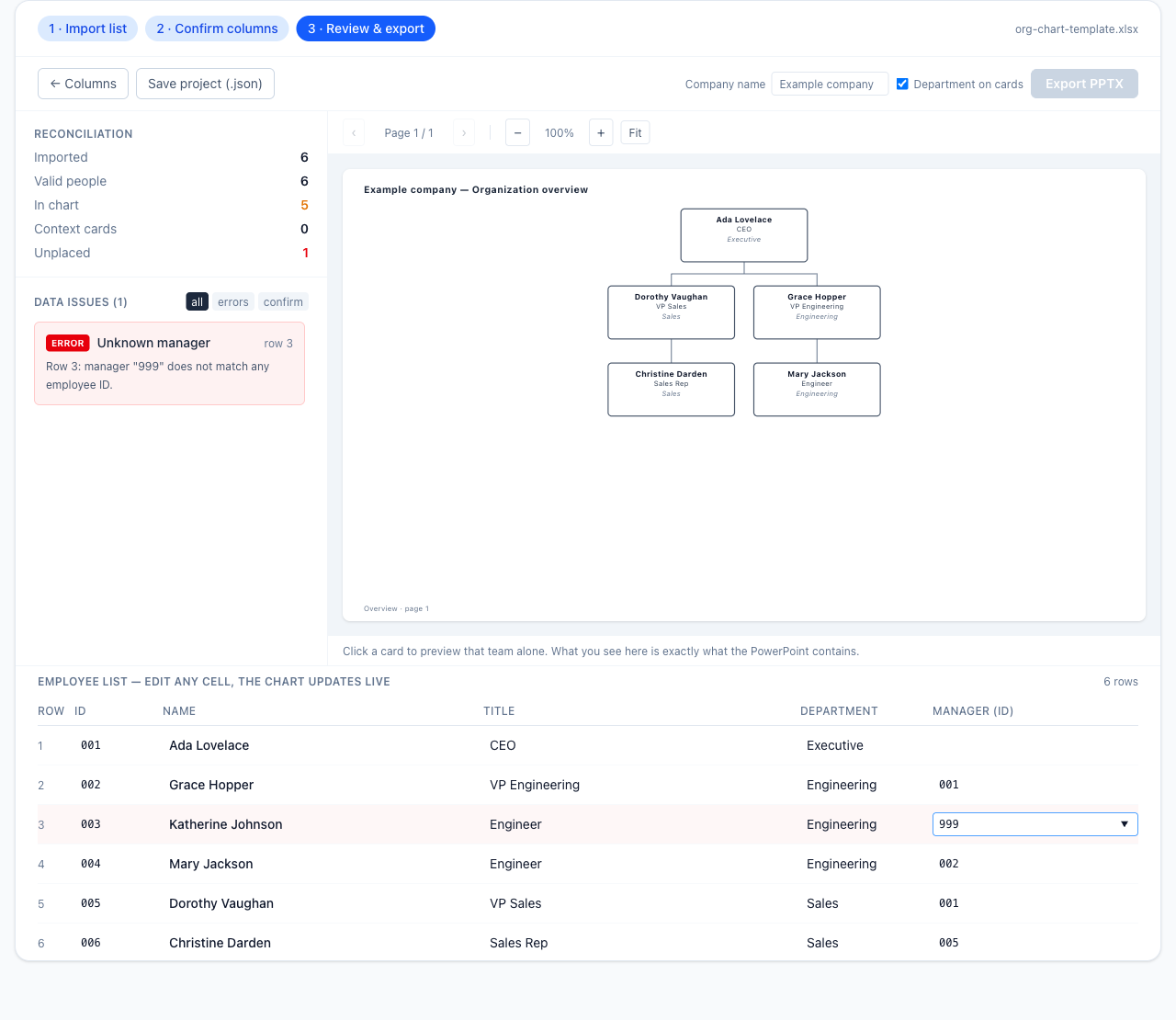
Find the reported row in the employee table below the preview. Row labels count employee rows after the header, so data row 3 is worksheet row 4 in this example. Restore Manager ID to 002; the preview and issue count update.
For other errors, correct duplicate IDs, missing names, self-reporting, or reporting cycles in the table. If several top leaders are intentional, confirm the Company container. If they are accidental, fill in the missing manager IDs instead.
4. Preview and export
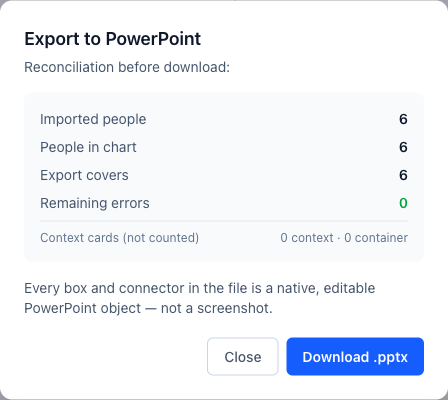
Check the reporting lines and the people counts. This example should have six imported people and six covered by the chart. For larger lists, review every page; repeated manager cards provide context and are not extra employees.
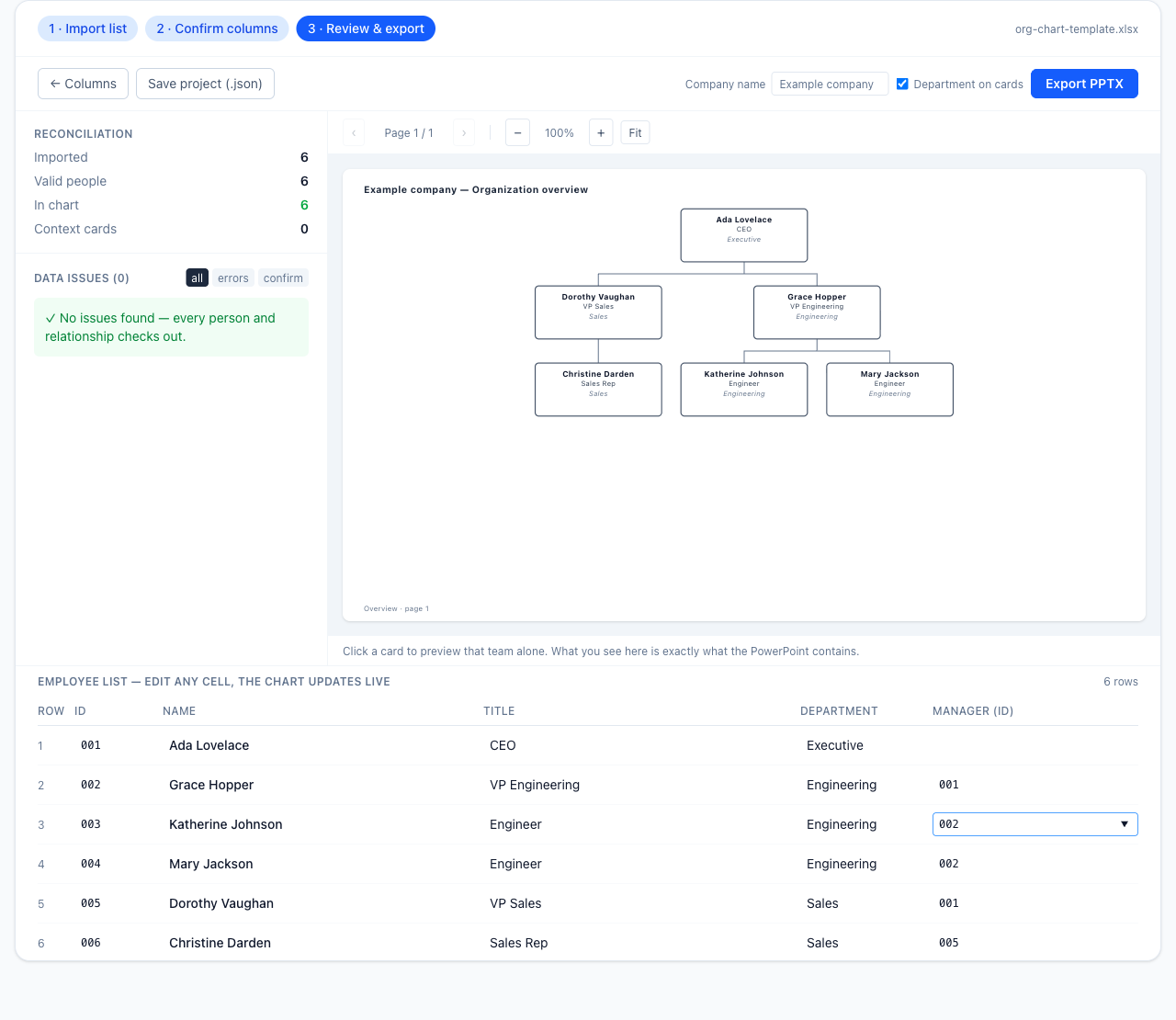
Choose Export PPTX and check the reconciliation in the confirmation dialog. The imported, charted, and exported counts must agree, with no unresolved issues. Then choose Download .pptx.
5. Edit the downloaded PowerPoint
Open the .pptx in PowerPoint. The exported cards contain editable text in native shapes, and the reporting lines are native line shapes. Select a card to change its name or title, or change its fill and position.
The chart is not SmartArt. Moving a card does not automatically rearrange the organization or reroute its lines. For a reporting change, edit the employee list in OrgChartKit and export again. You can save a project file to reopen your list and settings later.
Font rendering can differ between presentation applications. Check the file in the application you will use for the final presentation.
Questions and limits
Can I use this for more than 100 employees?
This version supports up to 100 people. Larger lists are rejected. It supports one solid-line manager per employee; matrix and dotted-line reporting are not supported.
Does it stay linked to my Excel file?
No. The PowerPoint is a snapshot of the list at export time. It has no automatic link back to the workbook or an HR system.
Can I do this without an account or payment?
Yes. Import, review, and PPTX export are currently free and do not require registration.
What if my CSV has lost its leading zeros?
Correct the IDs in the source list first, using consistent text values for both employees and managers. Formatting a number to look like 001 is different from storing the ID as text.
Try it with your employee list
Start with the Excel example or bring your own CSV or workbook. Confirm the columns, resolve any issues, and download the chart.
Create your org chart